
Introduction
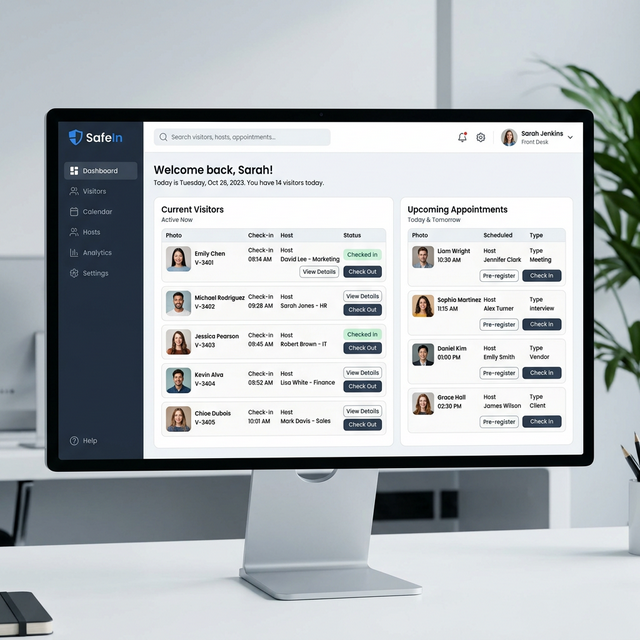
Scheduling appointments effectively is the cornerstone of a secure and efficient operation. In SafeIn, creating an appointment initiates a sequence of automated workflows, including visitor notifications and secure QR code generation.
This guide will walk you through the process of creating a new appointment for a seamless visitor experience.
Step-by-Step Guide
1. Accessing the Appointment Module
Log in to your SafeIn Dashboard. You can initiate a new appointment from two locations:
- Quick Actions: Click the "Make Appointment" button on the dashboard.
- Sidebar Navigation: Click on "Appointments", then select "New Appointment".
2. Choose Booking Method
Decide how you'd like to invite your guest:
- Priority Booking (Manual Entry): Enter the visitor's Name, Email, and Phone. The system will send them a secure OTP to show at the gate.
- Smart Invite Link: Copy the unique appointment link and send it via WhatsApp/Email. The guest will fill out their own details to complete the booking.
- QR-Based Self-Registration: Visitors can scan the printed QR code at your entry gate. This opens a registration page on their phone, allowing them to book a visit on-the-spot.
Pro Tip: If the visitor has visited before, the system will suggest auto-completing their details from the database (even via QR scan).
3. Scheduling Details
Define the logistics of the visit:
- Date & Time: Select the arrival date and expected time.
- Visit Type: Categorize as Interview, Meeting, or Vendor for better reporting.
4. Host Assignment
By default, you are the host. If scheduling for someone else, select the correct employee from the "Host" list. The assigned host will receive instant arrival alerts.
5. Review and Confirm
Double-check the details and click "Create Appointment".
What Happens Next?
Immediately after creation, the system triggers:
- Visitor Notification: The guest receives an automated message with the OTP (for Priority Bookings) or the **Form Link** (for Smart Invite Links).
- Host Notification: You (or the assigned host) will receive a confirmation alert once the appointment is finalized.